> ## Documentation Index
> Fetch the complete documentation index at: https://docs.obiguard.ai/llms.txt
> Use this file to discover all available pages before exploring further.
# n8n
> Add usage tracking, cost controls, and security guardrails to your n8n workflows
n8n is a workflow automation platform that helps you connect different systems and automate tasks.
While n8n delivers robust automation capabilities, Obiguard adds essential enterprise controls for production deployments:
* **Unified AI Gateway** - Single interface for 1600+ LLMs with API key management. (not just OpenAI & Anthropic)
* **Centralized AI observability**: Real-time usage tracking for 40+ key metrics and logs for every request
* **Governance** - Real-time spend tracking in your n8n setup
* **Security Guardrails** - PII detection, content filtering, and compliance controls
This guide will walk you through integrating Obiguard with n8n and setting up essential enterprise features including usage tracking, access controls, and budget management.
# 1. Setting up Obiguard
Obiguard allows you to use 1600+ LLMs with your n8n setup, w
ith minimal configuration required. Let's set up the core components in Obiguard that you'll need for integration.
You can choose to create a guardrail policy to protect your data and ensure compliance with organizational policies.
Add guardrail validators on your LLM inputs and output to govern your LLM usage.
Virtual Keys are Obiguard's secure way to manage your LLM provider API keys.
Think of them like disposable credit cards for your LLM API keys.
To create a virtual key:
Go to [Virtual Keys](/virtual-keys) in the Obiguard dashboard. Select the guardrail policy and your LLM provider.
Save and copy the virtual key ID
Save your virtual key ID - you'll need it for the next step.
# 2. Integrate Obiguard with n8n
Now that you have your Obiguard components set up, let's connect them to n8n.
Since Obiguard provides OpenAI API compatibility, integration is straightforward and requires just a few configuration steps in your n8n workflow.
You need your Obiguard Virtual Key from [Step 1](#Setting-up-obiguard) before going further.
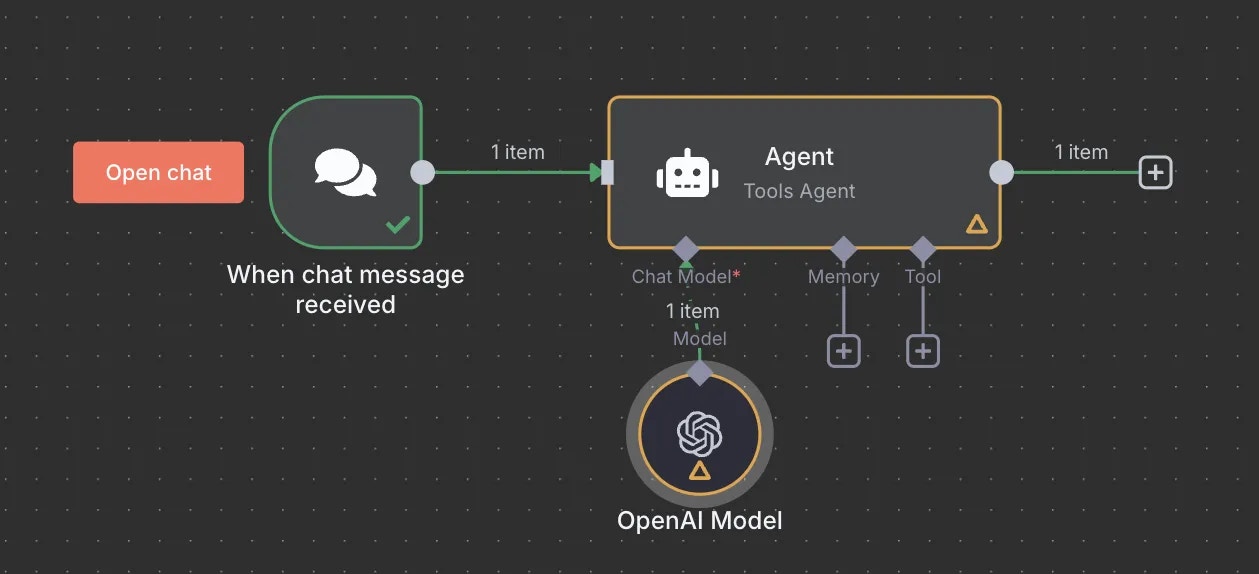
1. In your n8n workflow, add the OpenAI node where you want to use an LLM
2. Configure the OpenAI credentials with the following settings:
* API Key: Your Obiguard virtual key from the setup
* Base URL: `https://gateway.obiguard.ai/v1`
When saving your Obiguard credentials in n8n, you may encounter an "Internal Server Error" or connection warning.
This happens because n8n attempts to fetch available models from the API, but Obiguard doesn't expose a models endpoint in the same way OpenAI does. Despite this warning, your credentials are saved properly and will work in your workflows.
3. In your workflow, configure the OpenAI node to use your preferred model
* The model parameter in your config will override the default model in your n8n workflow
 It is recommended that you define a comprehensive config in Obiguard with your preferred LLM settings. This allows you to maintain all LLM settings in one place.
Make sure your virtual key has sufficient budget and rate limits for your expected usage. Also use the complete model name given by the provider.
You can monitor your requests and usage in the [Obiguard Logs](https://app.obiguard.ai).
## Obiguard Features
### 1. Comprehensive Metrics
Using Obiguard you can track 40+ key metrics including cost, token usage, response time, and performance across all your LLM providers in real time. You can also filter these metrics based on custom metadata that you can set in your configs. Learn more about metadata here.
### 2. Advanced Logs
Obiguard's logging dashboard provides detailed logs for every request made to your LLMs. These logs include:
* Complete request and response tracking
* Metadata tags for filtering
* Cost attribution and much more...
### 3. Unified Access to 1600+ LLMs
You can easily switch between 1600+ LLMs.
Call various LLMs such as Anthropic, Gemini, Mistral, Azure OpenAI, Google Vertex AI, AWS Bedrock, and many more by simply passing your Obiguard
virtual key in the `obiguard_api_key` field of your requests.
### 4. Advanced Guardrails
Protect your Project's data and enhance reliability with real-time checks on LLM inputs and outputs. Leverage guardrails to:
* Prevent sensitive data leaks
* Enforce compliance with organizational policies
* PII detection and masking
* Content filtering
* Custom security rules
* Data compliance checks
Implement real-time protection for your LLM interactions with automatic detection and filtering of sensitive content, PII, and custom security rules. Enable comprehensive data protection while maintaining compliance with organizational policies.
# FAQs
Yes! You can create multiple Virtual Keys (one for each provider) and attach them to a single request.
This config can then be connected to your API key, allowing you to use multiple providers through a single API key.
You can control model access by:
1. Setting specific models in your Obiguard configs
2. Creating different Virtual Keys with different provider access
3. Using model-specific configs attached to different API keys
4. Implementing conditional routing based on workflow metadata
## Next Steps
The complete list of features supported in the SDK are available on the link below.
Learn more about the Obiguard SDK Client
It is recommended that you define a comprehensive config in Obiguard with your preferred LLM settings. This allows you to maintain all LLM settings in one place.
Make sure your virtual key has sufficient budget and rate limits for your expected usage. Also use the complete model name given by the provider.
You can monitor your requests and usage in the [Obiguard Logs](https://app.obiguard.ai).
## Obiguard Features
### 1. Comprehensive Metrics
Using Obiguard you can track 40+ key metrics including cost, token usage, response time, and performance across all your LLM providers in real time. You can also filter these metrics based on custom metadata that you can set in your configs. Learn more about metadata here.
### 2. Advanced Logs
Obiguard's logging dashboard provides detailed logs for every request made to your LLMs. These logs include:
* Complete request and response tracking
* Metadata tags for filtering
* Cost attribution and much more...
### 3. Unified Access to 1600+ LLMs
You can easily switch between 1600+ LLMs.
Call various LLMs such as Anthropic, Gemini, Mistral, Azure OpenAI, Google Vertex AI, AWS Bedrock, and many more by simply passing your Obiguard
virtual key in the `obiguard_api_key` field of your requests.
### 4. Advanced Guardrails
Protect your Project's data and enhance reliability with real-time checks on LLM inputs and outputs. Leverage guardrails to:
* Prevent sensitive data leaks
* Enforce compliance with organizational policies
* PII detection and masking
* Content filtering
* Custom security rules
* Data compliance checks
Implement real-time protection for your LLM interactions with automatic detection and filtering of sensitive content, PII, and custom security rules. Enable comprehensive data protection while maintaining compliance with organizational policies.
# FAQs
Yes! You can create multiple Virtual Keys (one for each provider) and attach them to a single request.
This config can then be connected to your API key, allowing you to use multiple providers through a single API key.
You can control model access by:
1. Setting specific models in your Obiguard configs
2. Creating different Virtual Keys with different provider access
3. Using model-specific configs attached to different API keys
4. Implementing conditional routing based on workflow metadata
## Next Steps
The complete list of features supported in the SDK are available on the link below.
Learn more about the Obiguard SDK Client